 by
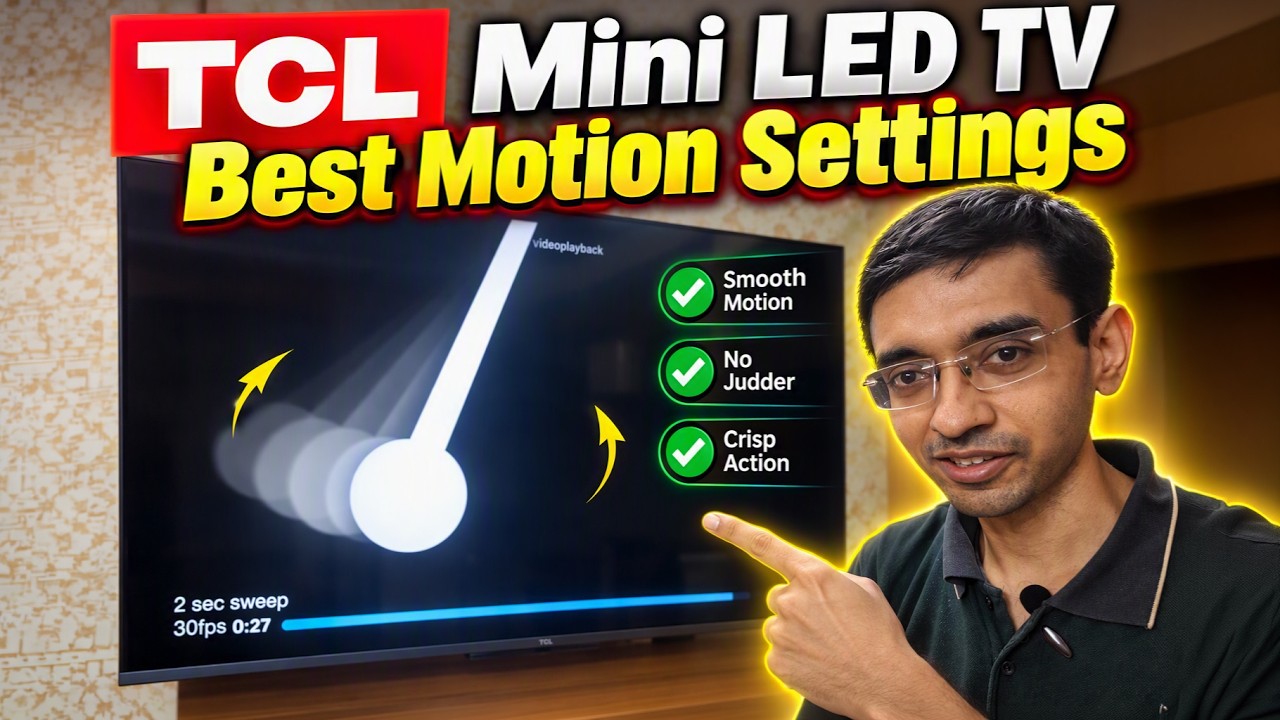
by In this guide, I’ll explain the TCL Best Motion Settings. I’ll also explain what to try if sports motion still doesn’t look right.
Motion problems can make an otherwise excellent television frustrating to watch. Fast-moving objects may appear blurry, camera pans can look uneven, and a cricket ball may seem to leave a trail behind it.
Fortunately, many TCL TVs include picture and motion controls that let you adjust how movement appears on the screen.
Keep in mind that the menu names and available controls depend on your exact TCL TV model, region, and firmware.
1. Understand the Difference Between Judder and Motion Blur
Before changing any settings, it’s useful to understand the problem you’re trying to solve.
What is judder?
Judder is an uneven or jerky appearance during movement, particularly when the camera pans across a scene. It can occur when the source frame rate and the display’s refresh behavior don’t produce an even motion cadence.
The frame rate of the source, the television’s refresh rate, and the way the TV processes the video all influence the result. A higher refresh-rate specification alone does not guarantee that every movie or video will appear perfectly smooth.
What is motion blur?
Motion blur refers to the loss of visible detail when an object moves. It may come from the source video, camera capture, display response, or motion-processing behavior.
You may notice it around a fast-moving football, cricket ball, racing car, or person.
What are ball trails and ghosting?
A moving object may appear to leave a faint trail or duplicate image behind it. This can result from motion processing, frame interpolation, display response, or characteristics of the source video.
The important point is that these problems are related, but they are not identical. A setting that makes movement smoother can sometimes introduce artifacts, so the best approach is to compare settings instead of simply maximizing motion smoothing.
2. Change the Picture Mode to Standard
Begin by opening your TCL TV’s picture settings.
- Press the Settings button on your remote.
- Open Picture settings.
- Select Standard Picture Mode.
- Use Standard as the starting point for the adjustments in this guide.
The purpose is to establish a consistent picture profile before testing the motion controls.
This does not mean Standard is the best picture mode for every person or every type of content. Some viewers prefer Movie or Cinema modes for films, while others may prefer a dedicated Sports mode. Use the mode that suits your viewing preferences and then compare the motion settings available within it.
3. Apply the Picture Settings to All Sources
The next step is to check whether your TCL TV allows picture settings to be applied across multiple sources.
In the demonstrated menu, the relevant option is called Apply All Picture Mode.
- Open the picture settings.
- Select Apply All Picture Mode.
- Change the selection from Current Sources to All Sources, if those options are available.
- Confirm the selection.
This is useful when you want consistent picture settings across compatible inputs and content sources.
However, not every TV handles picture profiles identically. HDR, Dolby Vision, SDR, HDMI inputs, and individual applications may have separate picture configurations or restrictions. If the television switches to a different picture profile when you start HDR content, check the available options for that mode as well.
4. Set Motion Clarity to Medium
Now open the Motion section of the picture settings.
On the TCL TV demonstrated in the video, Motion Clarity is the main control to adjust.
- Open Settings.
- Go to Picture and locate the Motion menu.
- Select Motion Clarity.
- Set it to Medium.
- Play the same test clip again and compare the result.
Medium is the starting point recommended in the video because it aims to balance smoother movement with unwanted motion artifacts.
The exact effect can vary across models and content. Some televisions use motion interpolation, while others offer additional controls involving the backlight or refresh behavior. A change in motion processing may also affect brightness or introduce a more artificial-looking image.
Use a scene containing a moving object or a slow camera pan so that you can judge the change more easily.
5. Enable Dynamic Acceleration if Your TV Supports It
The next adjustment in the video is Dynamic Acceleration.
If your TCL TV includes this feature, open the Motion menu and enable it as demonstrated.
The function and available choices depend on the model and firmware. Do not assume that Dynamic Acceleration works identically across every TCL television, or that it always changes the display to the exact frame rate of the source video.
For example, TCL’s settings guidance describes Dynamic Acceleration as a feature that increases the screen refresh rate when supported. The exact behavior should be confirmed for your particular model.
After enabling the feature, replay the same test clip. Look for changes in the motion of moving objects, camera pans, and fast-action scenes.
6. Reduce Cricket Ball Trails by Trying Motion Clarity Low
If you watch cricket, football, or other fast-moving sports, you may notice a faint trail behind the ball or other moving objects.
If Medium introduces unwanted artifacts on your television, try reducing Motion Clarity to Low.
- Open the Motion settings again.
- Change Motion Clarity from Medium to Low.
- Play the same sports clip.
- Compare the ball, players, and camera movement.
Low may reduce certain motion-processing artifacts, but it may also provide less smoothing. That is the trade-off: the smoothest setting is not necessarily the clearest-looking setting.
Choose the option that gives you the most natural image on your own TV.
7. How to Test the Settings Properly
Rather than switching settings randomly while watching different videos, use a repeatable test.
Step 1: Choose one clip. A pendulum test, camera pan, or fast sports sequence can work well.
Step 2: Keep the source consistent. Use the same app, input, video, and playback quality where possible.
Step 3: Change one setting at a time. Compare the default configuration, Motion Clarity Medium, and Motion Clarity Low. Test Dynamic Acceleration separately.
Step 4: Watch moving objects closely. Look at the edges of the object, its background, and whether any additional trails appear.
Step 5: Test your normal viewing content. A setting that looks good with a pendulum may behave differently with movies or live sports.
Step 6: Keep the setting that looks best to you. There is no universal setting that eliminates every motion problem on every source.
8. Why Your TCL TV May Still Show Motion Problems
If the picture still looks blurry or uneven after adjusting the motion controls, consider the following:
- Source quality: Low-bitrate streams, compression, and the original camera footage can produce artifacts that TV settings cannot fully remove.
- Different frame rates: Movies, TV shows, live broadcasts, and games may use different frame rates and motion characteristics.
- Different picture profiles: SDR, HDR, Dolby Vision, and other modes may use separate settings.
- Input or application differences: A built-in app and an external streaming device may not behave identically.
- Motion processing trade-offs: Increasing smoothing may improve one type of movement while making another look artificial.
TCL’s official troubleshooting guidance also recommends comparing motion settings, checking different content sources, and adjusting controls to suit the content.
Frequently Asked Questions
What is the best Motion Clarity setting for a TCL TV?
In this tutorial, Medium is the recommended starting point. If fast-moving objects develop trails or other artifacts, compare Low. The best choice depends on the TV model and your viewing preferences.
Should Dynamic Acceleration be enabled?
Try the option if your model supports it, then compare the results. Its behavior varies by TV, so check your model’s settings guidance before assuming it performs a particular frame-rate-matching function.
Why does my TCL TV show a trail behind the cricket ball?
Possible causes include motion processing, source-video characteristics, display response, or other artifacts. Lowering Motion Clarity may help in some cases, but it is not guaranteed to eliminate every trail.
Should I use Standard Picture Mode for every type of content?
Standard is the starting point used in this tutorial. Movie or Cinema modes may be preferable for viewers who prioritize a more film-like presentation. Compare the modes and keep the one that best suits your preferences.
Why do my settings change when I play HDR or Dolby Vision content?
Some TVs maintain separate picture profiles for different formats. Check whether the settings are available independently for the active format, and see whether Apply All Picture Mode behaves as expected on your model.
Final Thoughts
If motion on your TCL TV looks blurry, uneven, or overly processed, start with the picture mode and motion controls rather than assuming the panel is faulty.
The settings demonstrated in this video are a useful starting point: select Standard Picture Mode, apply the configuration to all sources where supported, try Motion Clarity Medium, and enable Dynamic Acceleration if available. If sports motion still shows distracting ball trails, compare Motion Clarity Low.
Your result may differ depending on the TV model, firmware, source, and content. Have a different TCL model? Share the model number and the motion problem you’re experiencing in the youtube comments.
If you found this guide on TCL Best Motion Settings helpful, please consider supporting us by joining our YouTube community to gain early access to all our latest troubleshooting guides and other members-only perks. You can also Subscribe to our newsletters to get email alerts when we release new content. Thanks for reading, and hope you would enjoy and have great time with these new Motion Settings.