 by
by Does your TCL Mini LED TV display colors that look too red, overly saturated, or warmer than you expect? Certain picture-processing settings can make colors appear more vivid, but they may also produce an unnatural-looking image. In this guide I will provide you with TCL Mini LED Best Color Settings.
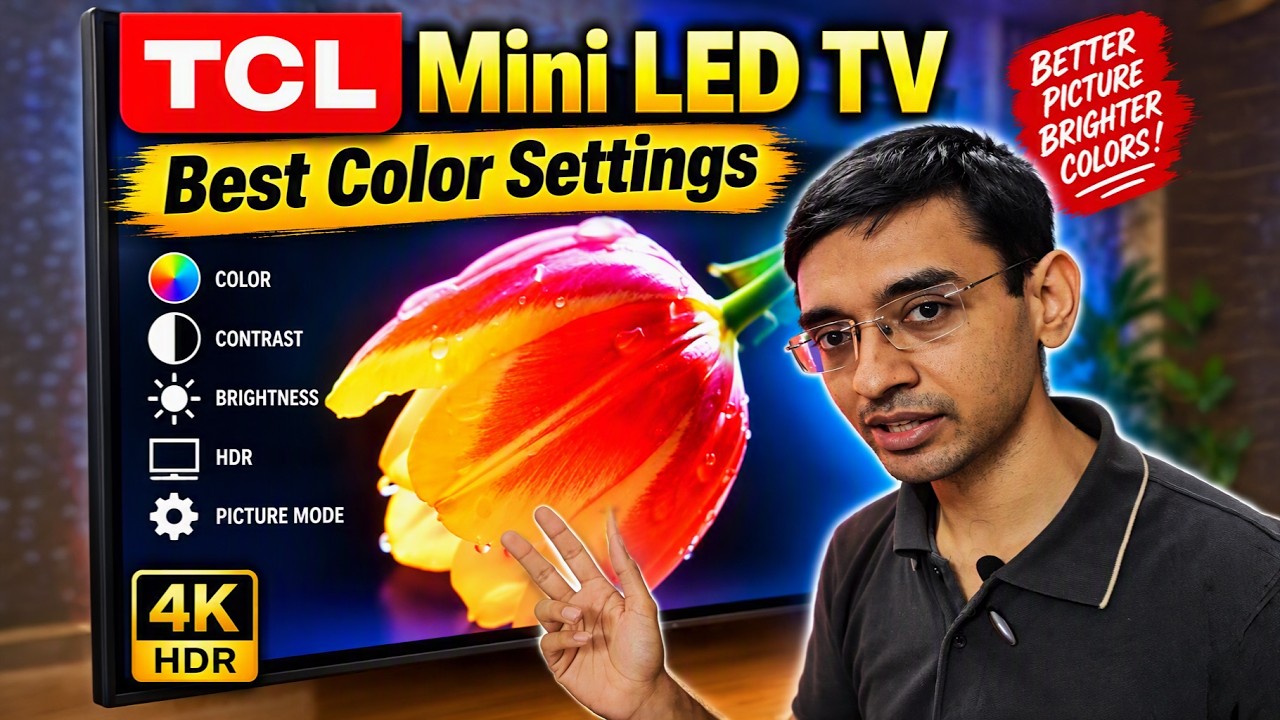
In this guide, I’ll walk you through the color settings demonstrated on my TCL TV to achieve a more neutral appearance, reduce exaggerated red tones, and improve the overall viewing experience with HDR and Dolby Vision content.
After the Android 14 update, I noticed that the default color temperature on my TV appeared warmer, introducing a reddish tint into the picture. Rather than changing every available picture control, I focused on a handful of settings that made a noticeable difference during my viewing tests.
These recommendations are intended as a practical starting point. They are not a substitute for professional calibration, and results may differ across TCL Mini LED models, firmware versions, picture modes, and viewing environments.
1. Start with Picture Settings
First, open the picture settings on your TCL TV.
Depending on your model and software version, the menu may be accessed through:
Settings → Picture Settings
For this demonstration, I used Vivid Mode while explaining the adjustments. However, I recommend starting with Standard Mode for a more balanced everyday viewing setup.
Vivid Mode is designed to make the image look more eye-catching in some environments. That can be useful in a brightly lit showroom, but its processing may not be ideal for viewers who prefer a less exaggerated presentation.
Standard Mode is a sensible starting point, although the most accurate picture mode can differ between models.
Apply the picture settings to all sources
Look for the Apply to All Picture Modes option and select All Sources, if your TV provides it.
The intention is to apply the adjustments consistently across the supported sources, instead of having to configure each one independently.
However, HDR and Dolby Vision may activate format-specific picture profiles or separate controls, depending on the TV and firmware. After making the changes, test an SDR video, an HDR title, and a Dolby Vision title to confirm how your particular television behaves.
2. Set Color Saturation to 50
Navigate to the Color menu and locate Color Saturation.
Recommended setting: 50
Color saturation affects the intensity of colors in the picture. Increasing it can make colors appear more vibrant, but too much saturation may make clothing, foliage, skin tones, and other familiar objects look exaggerated.
Keeping saturation at 50 provides a neutral starting point for this setup.
The correct value depends on the TV’s processing and the selected picture mode, so do not assume that 50 is a professionally calibrated reference value for every TCL model.
3. Set Tint to 50
Recommended setting: 50
Tint adjusts the balance between certain color tones, commonly along the green-magenta axis.
For this demonstration, leave Tint at 50 rather than introducing an unnecessary shift.
When troubleshooting a color cast, it is helpful to change one control at a time. Otherwise, it becomes difficult to identify which adjustment made the picture look better or worse.
4. Turn Dynamic Colors Off
Recommended setting: Off
Dynamic Colors is intended to enhance the appearance of colors through additional processing.
Although this can make the image look more vivid, it may not suit viewers who prefer a natural presentation. Turning it off removes this particular enhancement from the setup.
Pay attention to skin tones, grass, trees, and brightly colored objects when comparing the results. The goal is not to make the screen look dull; it is to avoid additional color enhancement that you do not need.
5. Adjust Color Temperature to Cool / -4
This is one of the main adjustments in the video.
Recommended setting: Cool, with the adjustment set to -4 as demonstrated in the TV’s menu.
On my TCL TV, the default Normal color temperature appeared relatively warm following the Android 14 update. The image seemed to contain additional red tones compared with the appearance I preferred.
Changing the color-temperature setting helped me move toward a less warm-looking picture.
Color temperature affects the overall warm or cool appearance of whites and neutral shades. A warmer image tends to look more yellow or reddish, while a cooler image tends to look bluer.
This does not mean Cool / -4 is universally correct. The best setting depends on the display’s actual white-point calibration, the model, the selected preset, and your viewing conditions.
For everyday watching, compare the alternatives using neutral whites, skin tones, and familiar scenes rather than choosing the setting that simply appears brightest or most vibrant.
6. Keep RGB Mode Off
Recommended setting: Off
In the demonstrated setup, RGB Mode is left at its default Off position.
You do not need to change this control to follow the main color adjustments in the video.
Menu wording and available RGB options can vary between TCL television models and software releases. If your TV uses different terminology, consult its own on-screen options rather than assuming that another model has identical controls.
7. Leave White Balance at Default
For this particular setup, leave White Balance unchanged.
White-balance controls are more advanced than the ordinary saturation and tint sliders. They can affect the relationship between the red, green, and blue components of the image, sometimes at different brightness levels.
Changing these settings without measurements can make the picture less accurate, even if one particular scene appears more pleasing.
If the default white balance looks acceptable, leave it alone. For reference-level color accuracy, use appropriate measurement equipment and calibration procedures for your exact TV.
8. Change Color Space from Native to Custom
This is the other main adjustment demonstrated in the video.
Recommended setting: Custom instead of Native.
On my TV, I noticed that the Native setting appeared to boost certain red shades compared with the Custom setting. Switching to Custom reduced that exaggerated appearance during my comparison.
Color-space controls affect how the TV reproduces colors. Their behavior and the meaning of each available mode can differ across displays.
Therefore, treat this adjustment as a model-specific viewing recommendation rather than a guarantee that Custom will be more accurate on every TCL television.
Keep the RGB sliders at 50, 50, 50
After selecting Custom, leave the individual RGB sliders at their default values:
- Red: 50
- Green: 50
- Blue: 50
The video does not recommend changing these individual sliders.
This allows you to evaluate the effect of the color-space selection itself without introducing additional adjustments that could complicate the comparison.
Why the Native-versus-Custom comparison matters
The two options may produce visibly different results on a particular TV. However, a difference in appearance alone does not establish which mode is more accurate.
For a useful comparison, keep the source, picture mode, brightness, and viewing conditions consistent. Camera recordings can also distort colors because of exposure, white balance, and the camera’s own color processing.
That is why the actual television is a better reference for this comparison than footage recorded on a phone or camera.
9. Complete TCL Mini LED Color Settings Checklist
Here is the full set of adjustments demonstrated in the video.
| Picture setting | Recommended value |
|---|---|
| Picture Mode | Standard |
| Apply to All Picture Modes | All Sources |
| Color Saturation | 50 |
| Tint | 50 |
| Dynamic Colors | Off |
| Color Temperature | Cool / -4 |
| RGB Mode | Off |
| White Balance | Leave at default |
| Color Space | Custom |
| Red Slider | 50 |
| Green Slider | 50 |
| Blue Slider | 50 |
These settings summarize the demonstrated configuration. Some controls may have different names, ranges, or behaviors on other TCL models.
10. Test Your Settings with HDR and Dolby Vision
After adjusting the color settings, watch several different types of content.
For SDR content: Try a familiar television programme or video with natural skin tones and ordinary indoor lighting.
For HDR content: Choose a scene containing both bright highlights and darker areas, along with a variety of colors.
For Dolby Vision: Check whether the TV switches to a format-specific picture mode and confirm that the intended settings remain in effect.
Pay attention to skin tones, red objects, neutral whites, and the overall warmth of the image. Check whether a change in color temperature or color space improves the picture according to your preference.
A recording of the screen is not a reliable way to judge precise color accuracy because cameras and video encoding can alter the result.
11. Do These Settings Work on Every TCL TV?
Not necessarily.
TCL offers various LED, QLED, and Mini LED models, and their image-processing systems, firmware, menus, and picture presets may differ. Settings that produce a pleasing image on one television may have a different effect on another.
The Android 14 observation in this guide relates to the TV used for the demonstration. It should not be interpreted as proof that every TCL TV receives the same color-temperature change after an operating-system update.
Use these values as a starting point, test them with your own content, and retain the settings that produce the best result on your particular TV.
Conclusion
If your TCL Mini LED TV looks excessively warm or oversaturated, start with the relatively simple adjustments demonstrated here.
Set Color Saturation and Tint to 50, turn Dynamic Colors off, try Cool / -4 for Color Temperature, leave RGB Mode and White Balance at their defaults, and change Color Space from Native to Custom while keeping the RGB sliders at 50, 50, 50.
Those are the settings I demonstrate in this video to achieve a more natural-looking picture.
Remember that personal preference, firmware, panel behavior, and source format all influence the final result. Test the settings across SDR, HDR, and Dolby Vision content before deciding which configuration works best for you.
If you found this guide on TCL Mini LED Best Color Settings helpful, please consider supporting us by joining our YouTube community to gain early access to all our latest troubleshooting guides and other members-only perks. You can also Subscribe to our newsletters to get email alerts when we release new content. Thanks for reading, and hope you would enjoy and have great time with these new Color Settings.